
Introduction
Telstra Webmail is an essential tool for managing emails, whether for personal or professional use. It’s a quick and reliable way to stay connected, access important messages, and stay organized. However, as many users know, issues can arise from time to time. When Telstra Webmail doesn’t work, it can cause frustration and stress, especially when you rely on it for day-to-day communication.
In this blog post, we will walk you through common problems users face with Telstra Webmail, and provide easy-to-follow steps to get you back in action. Whether it’s connection issues, login problems, or email synchronization glitches, we’ve got you covered!
Common Issues with Telstra Webmail
1. Connection Issues
What is causing connection issues with Telstra Webmail?
Connection problems with Webmail Telstra can be triggered by several factors. Here are the most common causes:
- Unstable internet connection: A weak or intermittent internet connection is often the culprit. Without a stable connection, it’s difficult to access your email smoothly.
- Server downtime or maintenance: Sometimes Telstra’s email servers might undergo maintenance, causing temporary outages.
- Issues with web browser settings: Browser configurations or outdated cache can also block access to Webmail.
How to diagnose and fix connection issues?
Here are a few steps you can take to identify and resolve connection issues:
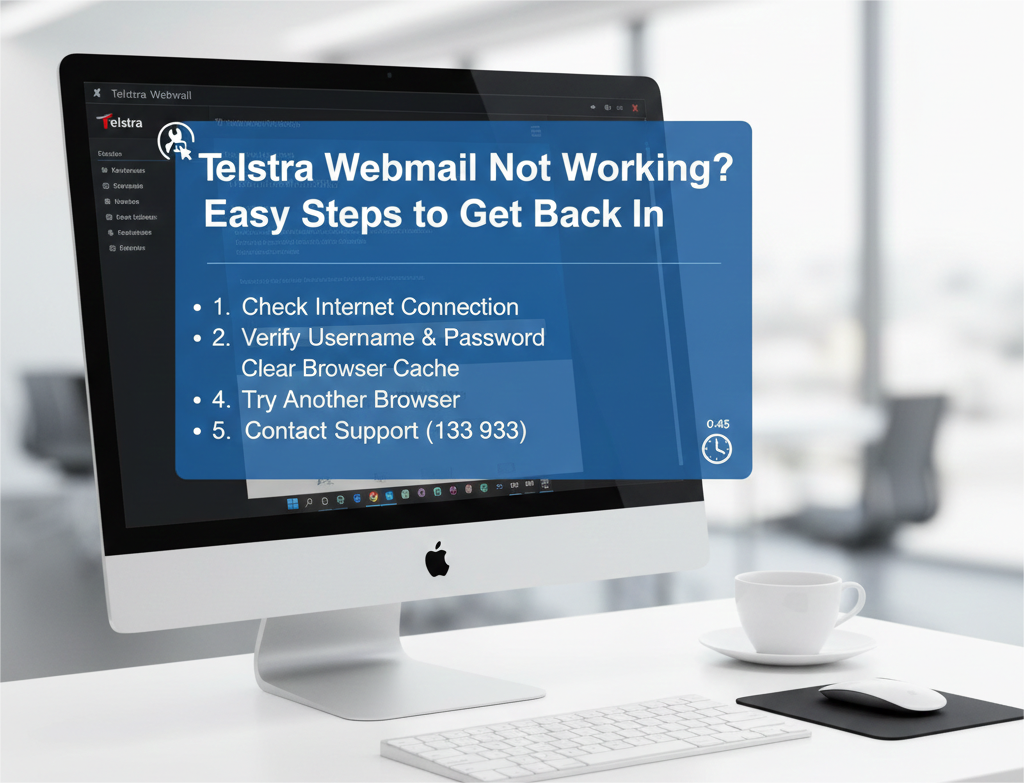
- Check your internet connection: Make sure your internet is stable. Try opening other websites to ensure it’s not an issue with your connection.
- Try accessing Webmail from different devices: Test on another device like your smartphone or tablet. This can help determine whether the issue is device-specific.
- Verify if Telstra’s email servers are down: Visit Telstra’s support page or check their social media to see if there are any service disruptions.
2. Login Problems
What causes login failures on Telstra Webmail?
Login issues can be due to a number of reasons, such as:
- Incorrect username or password: This is the most common reason for login failures.
- Account locked or disabled: After multiple unsuccessful login attempts, your account may get locked for security reasons.
- Two-factor authentication issues: If you’ve enabled two-factor authentication (2FA), any issues with the authentication process can prevent you from logging in.
How to fix login issues?
Here’s what you can do to resolve login problems:
- Ensure your credentials are correct: Double-check your username and password. If you’re unsure, reset your password.
- Reset password if necessary: Use Telstra’s password recovery tool if you’ve forgotten your password.
- Verify if two-factor authentication is enabled and working properly: If you use 2FA, make sure your second authentication method is functioning.
3. Email Synchronization Issues
Why is Telstra Webmail not syncing emails?
Email synchronization problems can be caused by:
- Issues with email settings: Incorrect configurations in your email client or Webmail account settings can prevent emails from syncing properly.
- Connection problems between email client and Telstra’s servers: A weak or unstable connection can hinder the sync process.
How to fix synchronization issues?
To fix syncing problems, try the following:
- Recheck email settings: Ensure your email account settings, like IMAP or POP, are correctly configured.
- Remove and re-add email account on your device: This can reset the connection between your device and the email server.
- Try accessing emails via Webmail instead of client apps: Sometimes using Webmail directly can help if there’s an issue with your email client app.
Steps to Fix Telstra Webmail Problems
1. Clear Browser Cache and Cookies
Why does clearing cache and cookies help?
Over time, cached files and cookies can cause issues such as slow loading or login failures. Clearing them helps refresh your connection to the Telstra Webmail site.
How to clear browser cache and cookies in popular browsers?
Here’s how you can do it in different browsers:
- Chrome: Go to settings > Privacy and security > Clear browsing data.
- Firefox: Open the menu > Options > Privacy & Security > Clear Data.
- Safari: Go to Preferences > Privacy > Manage Website Data.
- Edge: Click on the three dots > Settings > Privacy, search, and services > Clear browsing data.
2. Update Your Web Browser or App
How outdated browsers or apps impact Telstra Webmail?
Older browsers or outdated apps can cause compatibility issues with Webmail. New security protocols or features may not function properly on older versions.
How to update your browser or app?
- Browsers: Check your browser’s settings for any updates, or visit the browser’s website for the latest version.
- Mobile Apps: Visit the app store on your device to see if any updates are available for your email app.
3. Check Your Email Settings
How do incorrect email settings cause issues?
Incorrect email settings, such as wrong server addresses or disabled encryption, can prevent Webmail from syncing and working correctly.
Correct settings for Telstra Webmail:
- IMAP/SMTP server addresses and ports: Ensure your server settings match the ones provided by Telstra.
- Authentication settings: Double-check that your authentication settings are correct.
- Enabling SSL encryption: SSL encryption ensures secure communication between your email client and Telstra’s servers.
4. Test Telstra’s Email Server Status
How to check if Telstra servers are down?
Visit Telstra’s support page or check their official social media channels for any updates on server outages.
What to do if Telstra is experiencing server outages?
If Telstra’s servers are down, there’s not much you can do except wait for them to resolve the issue. You can also reach out to Telstra customer support for more information.
5. Reset Your Password
How can a forgotten or compromised password affect Webmail access?
A compromised password can make your account vulnerable to hacking, while a forgotten one will simply lock you out of Webmail.
Step-by-step guide to reset your Telstra password:
- Go to Telstra’s “Forgot Password” page.
- Follow the instructions to recover or reset your password.
- Set up a new, strong password to protect your account.
Troubleshooting Advanced Issues with Telstra Webmail
1. Account Locked or Suspended
What causes a Telstra Webmail account to be locked or suspended?
Your account may be locked or suspended if you’ve made multiple failed login attempts or violated Telstra’s terms of service.
How to unlock or recover a suspended Telstra account?
Contact Telstra support to unlock your account. They’ll help verify your identity and resolve any security issues.
2. Compatibility Issues with Third-party Email Clients
How do third-party email clients interfere with Telstra Webmail?
Third-party email clients may not always be compatible with Telstra’s Webmail settings, causing syncing or connection issues.
How to resolve compatibility issues?
Make sure your email client is compatible with Telstra email and Telstra Webmail. Alternatively, consider using Telstra’s official email client or Webmail interface for a smoother Telstra email experience.
Contacting Telstra Support for Further Assistance
1. How to Contact Telstra Support for Webmail Issues
Telstra provides multiple support channels for Webmail-related issues:
- Phone support: Call Telstra’s support team for direct assistance.
- Live chat and email support: Get help via Telstra’s online support chat or by emailing their team.
What information to provide when contacting support?
When reaching out to Telstra support, provide:
- Your account details.
- Any error messages you’ve received.
- A list of troubleshooting steps you’ve already tried.
2. What to Expect When Contacting Telstra Support
Response time and resolution expectations
Telstra usually responds quickly, but complex issues may take longer to resolve. Be patient, and they’ll guide you through the process.
How Telstra can help in severe cases
In cases like account recovery or security breaches, Telstra can assist in restoring your account and securing your data.
Preventing Future Webmail Problems
1. Enable Two-Factor Authentication (2FA)
Why enabling 2FA improves security and reduces login problems?
2FA adds an extra layer of protection by requiring a second verification step. This makes it harder for unauthorized users to access your account.
2. Regularly Update Your Password
How often should you change your password for security?
Change your password periodically to reduce the risk of unauthorized access. A strong, unique password is essential for account security.
3. Stay Updated on Telstra Webmail Features and Updates
Why is it important to stay informed about updates?
Staying informed ensures your email settings and features are up-to-date, which can help avoid future problems.
Conclusion
In this blog post, we covered common issues and solutions for when your Telstra Webmail isn’t working properly. From connection problems to login failures, these troubleshooting steps will guide you through fixing most issues. If you’re still having trouble, don’t hesitate to contact Telstra support for further assistance.
Remember to take steps to prevent future problems, like enabling two-factor authentication and regularly updating your password. With these tips, you can maintain a smooth and hassle-free experience with Telstra Webmail.
For More Information, Visit Blospire