Introduction
Telstra Webmail is one of Australia’s most popular email services, offering a reliable way for both personal and business communication. However, like many online services, users sometimes face login issues that can be frustrating and time-consuming. Whether it’s forgetting your password or dealing with a browser glitch, these problems can interrupt your day.
In this guide, we’ll break down common Telstra Webmail login problems and provide quick solutions to get you back into your account in no time. From incorrect credentials to browser issues, we’ve got you covered.
What Is Telstra Webmail?
Overview of Telstra Email Services
Telstra Webmail is the email platform provided by Telstra, a major telecommunications company in Australia. It allows users to send, receive, and manage their emails through a web-based interface. It’s a convenient tool for staying in touch with family, friends, and colleagues, offering both personal and business email accounts.
What is Webmail?
Webmail refers to accessing your email account through a web browser. Instead of using an email client like Outlook or Apple Mail, you log in directly to a website (in this case, Telstra Webmail) to check your inbox and send messages.
Difference Between Telstra Webmail & Mobile/POP/IMAP Email
While Telstra Webmail is accessed through a web browser, mobile and desktop email applications usually rely on POP (Post Office Protocol) or IMAP (Internet Message Access Protocol) to manage email. These protocols allow you to download and manage your emails locally, while Webmail lets you access them online. Both options are great for staying connected, but they operate differently.
Who Uses Telstra Webmail?
Residential Customers
Many Australians use Telstra Webmail for personal email, staying connected with loved ones, and managing everyday communication. It’s simple and easy to use.
Business Users
Telstra Webmail also serves many businesses that require secure, reliable communication. Telstra offers business-grade email services with features suited for professional needs.
Migration to Other Platforms
Some users may eventually migrate to other email services, like Gmail or Microsoft Outlook, but Telstra Webmail remains a reliable option for those who prefer it.
Common Telstra Webmail Login Problems
Incorrect Email or Password
The most common login issue people face is entering the wrong email address or password. Typos are easy to make, so it’s important to double-check.
Typo Mistakes
Sometimes, a simple typo is all it takes to prevent you from logging in. Be sure to double-check each character in your email address and password.
Case Sensitivity
Remember, passwords are case-sensitive. Make sure you’re using the correct capitalization.
Forgotten Credentials
What happens when you forget your email address or password? Don’t panic; Telstra offers recovery options.
Can’t Remember Email Address
If you’ve forgotten your email address, check any linked accounts or devices for a hint. You can also use Telstra’s recovery form to help you find it.
Can’t Recall Password
Forgotten passwords are another common issue. Fortunately, you can reset your password with Telstra’s easy-to-follow password reset process.
Account Locked or Suspended
If you’ve had several failed login attempts, your account may be temporarily locked for security reasons. This is to protect your account from unauthorized access.
Repeated Failed Login Attempts
Entering the wrong password multiple times may trigger a lock on your account. Wait a bit before trying again or use the password reset option.
Security Flagging
Telstra may flag your account if suspicious activity is detected. This can happen if you try logging in from an unfamiliar device or location.
Browser‑Related Problems
Sometimes, browser settings or cached data interfere with logging into Telstra Webmail.
Cache and Cookie Interference
Over time, your browser stores temporary data like cookies and cache, which may cause issues when you try to log in. Clearing them can often fix the problem.
Outdated Browser
Using an outdated browser can also prevent you from accessing your Telstra Webmail account. Make sure your browser is up-to-date.
Connection & Network Issues
A slow or unstable internet connection can prevent you from logging in.
Slow Internet or Unstable Connection
Ensure your internet connection is stable. Try restarting your router or connecting to a different network if the problem persists.
ISP‑Related Problems
Occasionally, issues with your Internet Service Provider (ISP) can interfere with your connection. Contact your ISP if you’re having frequent connection problems.
Server Outages or Service Interruptions
Telstra Webmail can experience downtimes or maintenance interruptions, which could prevent you from logging in.
Scheduled Maintenance
Telstra occasionally performs maintenance on its servers, which can temporarily affect service availability. Always check for any scheduled downtime.
Unexpected Downtimes
In some cases, the service may experience unexpected outages. If you’re unable to log in, it’s worth checking the Telstra service status page for updates.
Two‑Step Verification Problems
Two-step verification adds an extra layer of security, but it can sometimes cause login issues.
Not Receiving Verification Codes
If you’re not receiving your verification code, ensure your phone number is correct and check if your device is syncing properly.
Device Syncing Errors
If your verification device isn’t syncing properly, try restarting your phone or reconfiguring your two-step verification settings.
Before You Try Anything Else: Quick Preliminary Checks
Make Sure You Have the Right Login Page
First, double-check that you’re on the correct Telstra Webmail login page to avoid phishing attempts.
Check Your Internet Connection
Make sure your internet connection is working properly. A weak or unstable connection can prevent you from logging in.
Confirm Your Caps Lock and Keyboard Layout
It’s easy to accidentally hit Caps Lock or change the keyboard layout. Double-check that these aren’t causing issues.
Step-by-Step Fixes for Telstra Webmail Login Problems
Fix #1: Reset Your Password the Right Way
Telstra Password Reset via Web Form
Visit the Telstra password reset page to start the process. You’ll be asked to provide your email address or phone number to receive a reset link.
Password Reset via Registered Mobile
If you registered a mobile number with your account, you can use it to receive a reset code via SMS.
Choosing a Strong, Yet Memorable Password
When creating a new password, choose one that is both strong and memorable. Use a mix of upper and lowercase letters, numbers, and special characters.
Fix #2: Recover Forgotten Email Addresses
If you’ve forgotten your email address, you can recover it through Telstra’s recovery form. Alternatively, check devices or apps where you’re logged in.
Fix #3: Clear Browser Cache and Cookies
Clearing your browser’s cache and cookies can solve login issues caused by old data.
How to Clear Cache in Chrome
- Click on the three-dot menu.
- Go to “More Tools” > “Clear browsing data.”
- Select “Cached images and files,” then click “Clear data.”
How to Clear Cache in Firefox
- Click on the menu and select “Options.”
- Choose “Privacy & Security.”
- Under “Cookies and Site Data,” click “Clear Data.”
How to Clear Cache in Edge
- Click on the three dots in the top right.
- Go to “Settings” > “Privacy, search, and services.”
- Under “Clear browsing data,” select “Choose what to clear.”
Fix #4: Try a Different Browser or Device
Switch to a different browser or device if you’re having trouble with your current one. Telstra Webmail works best on up-to-date browsers like Chrome, Firefox, and Edge.
Fix #5: Disable Browser Extensions
Browser extensions like ad-blockers or privacy tools can interfere with your login. Try disabling them temporarily to see if it helps.
Fix #6: Check for Network Blocks & Firewall Issues
Restarting Your Router/Network
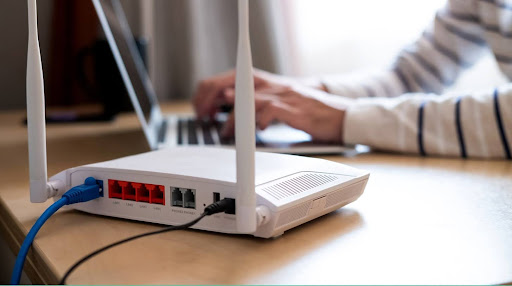
Sometimes, simply restarting your router can fix network issues. Unplug it for 30 seconds, then plug it back in.
Checking Firewall and Antivirus Settings
Make sure your firewall or antivirus software isn’t blocking Telstra Webmail. Temporarily disable them to see if the issue is resolved.
Fix #7: Confirm Telstra Server Status
Check Telstra’s status page for any service interruptions. If there’s an outage, you’ll have to wait until it’s resolved.
Fix #8: Two‑Step Verification Workarounds
When Codes Don’t Arrive
If you don’t receive your verification code, check your spam folder or try re-sending the code.
Using Backup Codes or Authenticator Apps
Use backup codes or an authenticator app if you’re unable to receive verification codes.
When to Contact Telstra Support
Support Channels (Phone, Chat, Email)
If you’ve tried everything and still can’t log in, contact Telstra’s customer support. You can reach them by phone, chat, or email.
What Information to Have Ready
To speed up the process, have your account details and any screenshots of error messages ready.
Preventing Future Login Problems
Best Practices for Telstra Webmail Accounts
Using a password manager and updating recovery options will keep your account secure and prevent login issues.
Regular Security Checks
Enable two-step verification and regularly update your software to protect your account from future problems.
FAQs About Telstra Webmail Login Issues
Why am I getting “Invalid Credentials” when I’m sure they’re correct?
This could be due to a typo, case sensitivity, or incorrect credentials. Double-check everything.
How often should I change my password?
For added security, change your password every 3-6 months.
What if my account is hacked?
Contact Telstra support immediately, and change your password to secure your account.
Can I use Telstra Webmail on my phone/email app?
Yes, Telstra Webmail can be accessed via mobile apps and email clients that support IMAP or POP.
Conclusion
Most Telstra Webmail login issues can be resolved quickly with the right steps. Whether it’s a forgotten password, browser problem, or network issue, following these fixes should get you back into your account. Don’t forget to practice good security habits to prevent future problems. For more tips, check out related guides on Telstra email setup and security best practices!
For More Information, Visit Blospire